
Likes and comments
Once a world is approved, or a character is public, it has a page, and players can react to it there. This guide covers the heart, the messages people leave, what you can do with a message on your own page, and where you see the counts. Saltmere and Wren are the examples.
Likes
A heart sits beside Start on a world's page, and beside the chatting count on a public character's page. Any signed-in account can like, you too. Press the heart to like and press it again to take the like back. The page shows how many likes there are, never who gave them. A visitor who is not signed in sees the same heart, and it links to sign-in; on hover it shows Sign in to like.
Only an approved world or a public character has a page, so likes start after review.

A public character's page has the same heart, under the portrait beside the counters.
Messages
Under the world or character is a section called Phantoms: "Travellers who passed through before you, and what they left behind." Messages are listed newest first. Until someone writes one, it reads "Leave the first note."
To write one, type in the box that says Leave a message for the next player, then press Post. A message can hold up to 1000 characters, in plain text: a link stays text, and nothing is formatted. The message shows on the page the moment you send it.
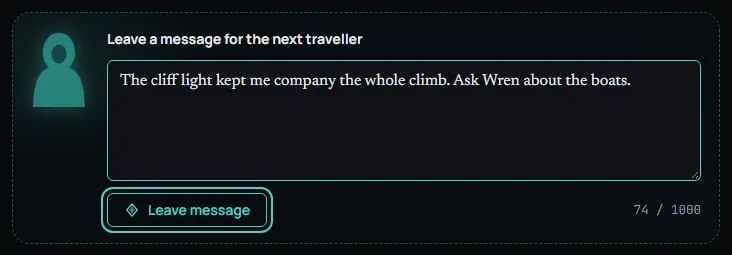
You need an account with a confirmed email. A new account sees "Your account is new. Confirm your email, then you can leave a message." A visitor sees "Messages are left by travellers with an account." and a link, Sign in to leave a message.
Readers with a confirmed email can also react to a message with Appraise or an emoji: the plus button, Add reaction, offers the choices.
You can delete a message you wrote: Delete asks first, and it disappears from the page for everyone.
What you can do as the creator
On your own world or character you have three more tools on each message.
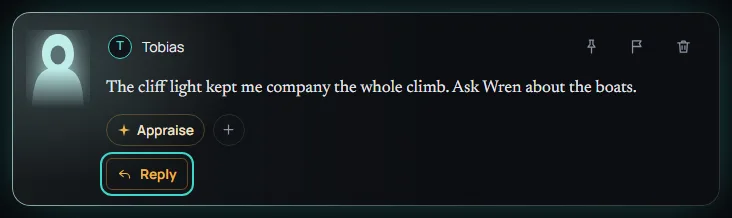
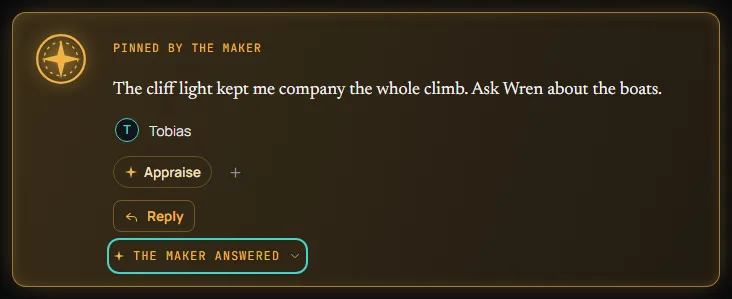
- Reply. Press Reply under a message and write your answer in the Your reply box, then press Post reply. The answer shows under the message, folded under a button called The creator answered. Your words carry a Creator chip.
- Pin. Pin puts one message at the top of the list, labelled Pinned by the creator. You can pin one message at a time. Unpin sets it back.
- Delete. Delete asks "Delete this message?" and says "It disappears from the page for everyone." Press Delete message to confirm.
The Pin, Report and Delete icons show when you point at a message or put the focus on it, and always on a touch screen.
A pinned message shows its folded answer under it. Press The creator answered to open it.
Reporting a message
Any signed-in reader can report a message they did not write. Press Report on the message, and the dialog Report this message asks "What is wrong with it?" Write a line and press Send report. A message says "Report sent — a moderator will look at it." The message stays on the page until a moderator decides.
Where you see the counts
In Studio, each world's card in My worlds ends its stats row with the number of likes and the number of comments. A character's page shows its heart count and its Phantoms.