
Make a world from a template
Studio is where you make the worlds people play. This guide makes Saltmere, a small harbour village, from a template. A template is a world that already works, so you start by changing it and not by building it from nothing.
What a template gives you
When you make a new world, you pick what to start from. There are four templates: Blank world, Fantasy, Realistic and Sci-Fi.
This guide uses Fantasy. Its line in the picker reads: "A village under a lord, where magic is real, rare and paid for." It comes with four places, two people and one thing, three lore entries, three rules and one scene. All of it is yours to change. The Locations section explains the four places, The Characters and things section explains the two people and the thing, The Rules section explains the three rules, The Scenes section explains the scene, and The Lore section explains the three lore entries.
Make the world
Open Studio. The first page is My worlds. Press New world. A dialog called A new world opens.
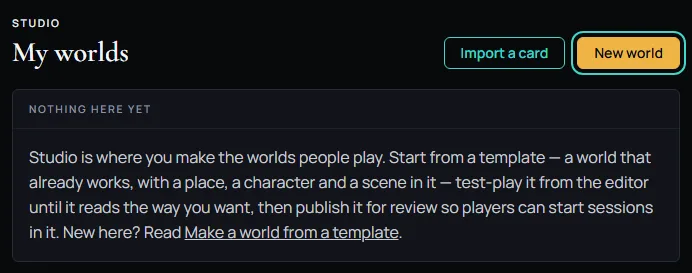
- Start from: Blank world is picked when the dialog opens. Pick Fantasy.
- Title: Type
Saltmere. - Slug: It follows the title until you change it. A slug is lowercase words joined by dashes, and it is what a link to your world carries. Every world has its own slug, so if Create says the slug is taken, change it.
- Rating: Leave the Rating on SFW.
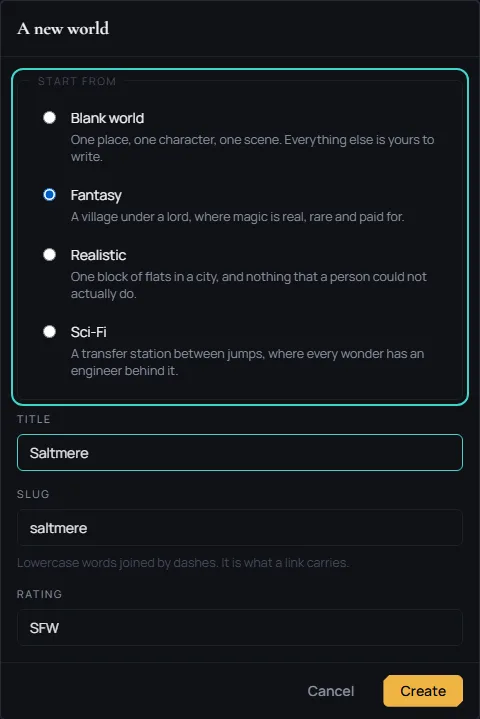
Press Create.
The editor
Create opens the editor on World. On a wide screen it has three columns:
- On the left, What this world is made of lists the sections of your world.
- In the middle is the section you have open.
- On the right is Problems. It lists anything that stops the world from being published, and each problem links to its field.
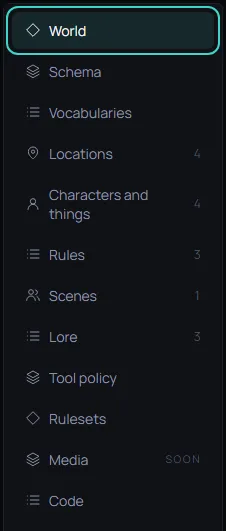
On a phone the left column folds behind the menu button at the top.
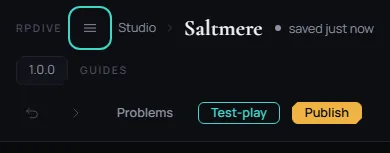
Your draft saves itself as you go.
Make it yours
The template's words are placeholders. In World, write the ones a player reads first:
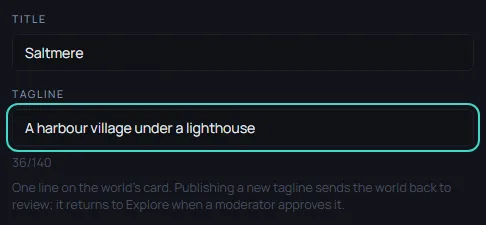
- Tagline: One line on the world's card, up to 140 characters. Saltmere's is
A harbour village under a lighthouse.
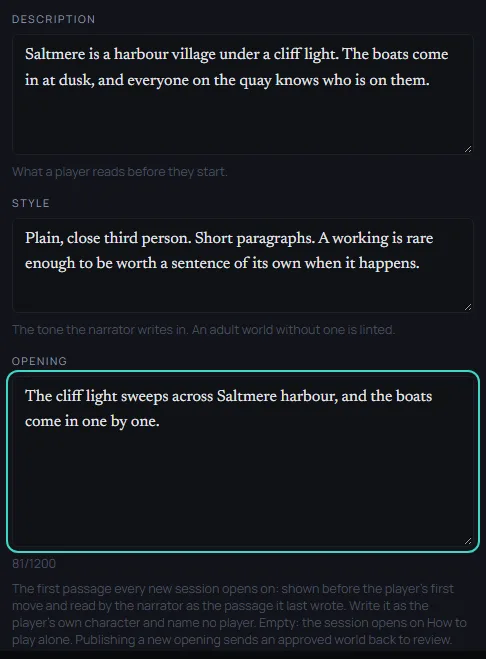
- Description: What a player reads before they start. A sentence or two that names Saltmere, the cliff light and the boats at dusk. Saltmere's is
Saltmere is a harbour village under a cliff light. The boats come in at dusk, and everyone on the quay knows who is on them. - Opening: The first thing the narrator says, up to 1,200 characters. Saltmere's is
The cliff light sweeps across Saltmere harbour, and the boats come in one by one.
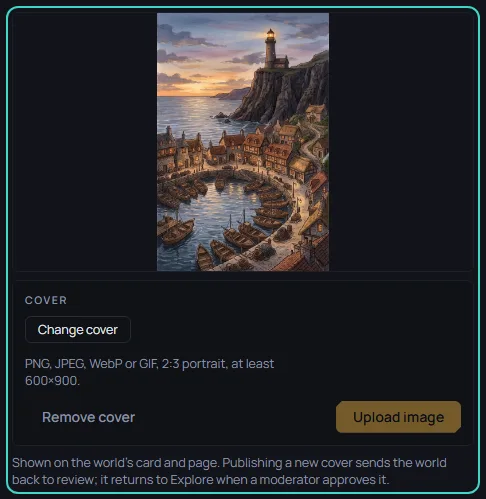
- Cover: The picture on the world's card. It is a 2:3 portrait, PNG, JPEG, WebP or GIF, at least 600×900. Press Change cover and choose your file. Its name shows, and then Upload image works. Press Upload image.
The World section lists every field in World.
To bring a character you already made into the world, see Add your character to a world.
Try it
Test-play, in the top bar, opens a panel where you play your draft before anyone else sees it. Test-play your world plays one turn in Saltmere.
When it is ready
When the world reads the way you want, publish it for review.